Start From the Mating Faces
Before you sketch a single profile, write down what the part touches. A shelf bracket touches a wall, two screws and a shelf. A battery door touches a housing lip, a latch and a thumb. Each contact is a design constraint with a number attached — a screw diameter, a minimum wall, a clearance — and those numbers should exist in your model before the outline does.
In Autodesk Fusion this means the parameter table; in Onshape, variables or a configuration; in FreeCAD, a spreadsheet driving your sketches; in SolidWorks, global variables and equations; in OpenSCAD, simply variables at the top of the file. Name them for their function: screw_clearance, lid_gap, wall_min. When a test print comes back tight, you change one value and every dependent feature updates. That is the whole point of parametric modelling, and it only works if the important dimensions were named on day one.
Design for the Nozzle, Not the Screen
A 0.4 mm nozzle typically lays lines around 0.42–0.45 mm wide. A wall modelled at an awkward fraction of that — 1.1 mm, say — forces the slicer to fill gaps with thin, weak extrusions or leave voids. Model load-bearing walls as clean multiples of your line width, such as 0.9, 1.3 or 1.7 mm, and check the slicer preview to confirm solid perimeters.
Gravity is the other constraint the screen hides. Overhangs steeper than roughly 45° from vertical need support or redesign. On bed-facing edges, a 45° chamfer prints cleanly while a fillet starts as a horizontal overhang and droops. Horizontal holes print better as teardrops or with a flat roof. Short bridges of a few centimetres are usually fine with good cooling; longer spans deserve their own test strip.
Line width 0.45 mmWalls ×3 = 1.35 mmOverhang ≤ 45°Bed chamfer 0.5 mm
Treat Tolerance as a Measured Value
ISO 286 defines the vocabulary of engineering fits — clearance, transition and interference — for machined shafts and holes. FDM printing cannot hold those machined grades, but the vocabulary is still useful: decide whether each joint should slide, turn, locate or press, then find the gap your printer needs to achieve it.
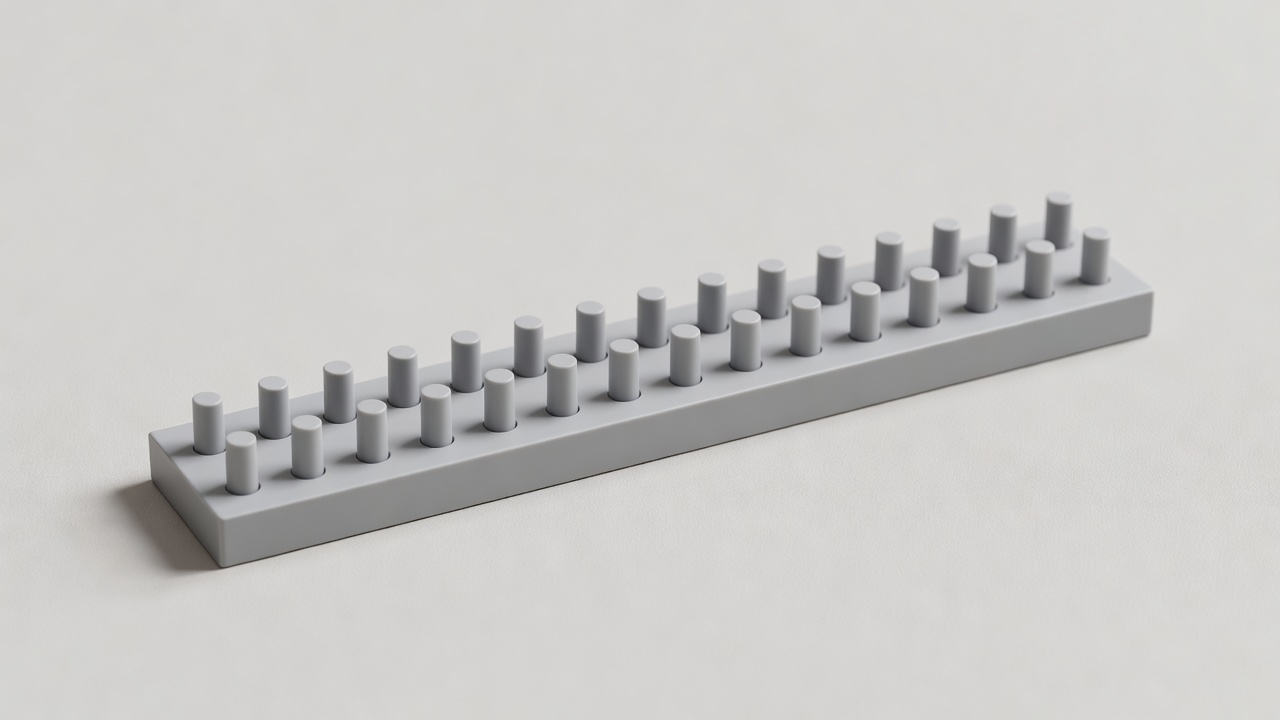
Gaps 0.10–0.40 mmStep 0.05 mmPrint time ≈ 20 min
Print a coupon with pegs and holes at 0.10, 0.15, 0.20, 0.25, 0.30 and 0.40 mm clearance per side, in the same material, orientation and settings as the real part. Record which pairs press together, which slide and which spin freely. That record is a measured result. “It should be 0.2 mm” is an assumption, and it changes with every material, nozzle and slicer profile.
Holes usually print undersize. The slicer approximates arcs with straight segments, and the outer line of a hole squashes inward. Many slicers offer hole or XY compensation, but apply it after calibrating flow, not instead of it — otherwise you are hiding one error behind another.
Assumption vs result: keep two columns in your notes. Values copied from a forum post or a datasheet go in the first. Values you have measured on your own printed parts go in the second. Only the second column should drive the final model.
Use Exploded Views to Check Assembly
A fused assembly can look perfect while being impossible to put together. Explode it in CAD before printing. Check that each part has a straight insertion path, that a screwdriver can reach every fastener, that heat-set inserts can be pressed in without the soldering iron hitting a wall, and that the sequence makes sense. Fusion and Onshape both handle assemblies with joints or mates, which also lets you check range of motion for hinges and sliders.
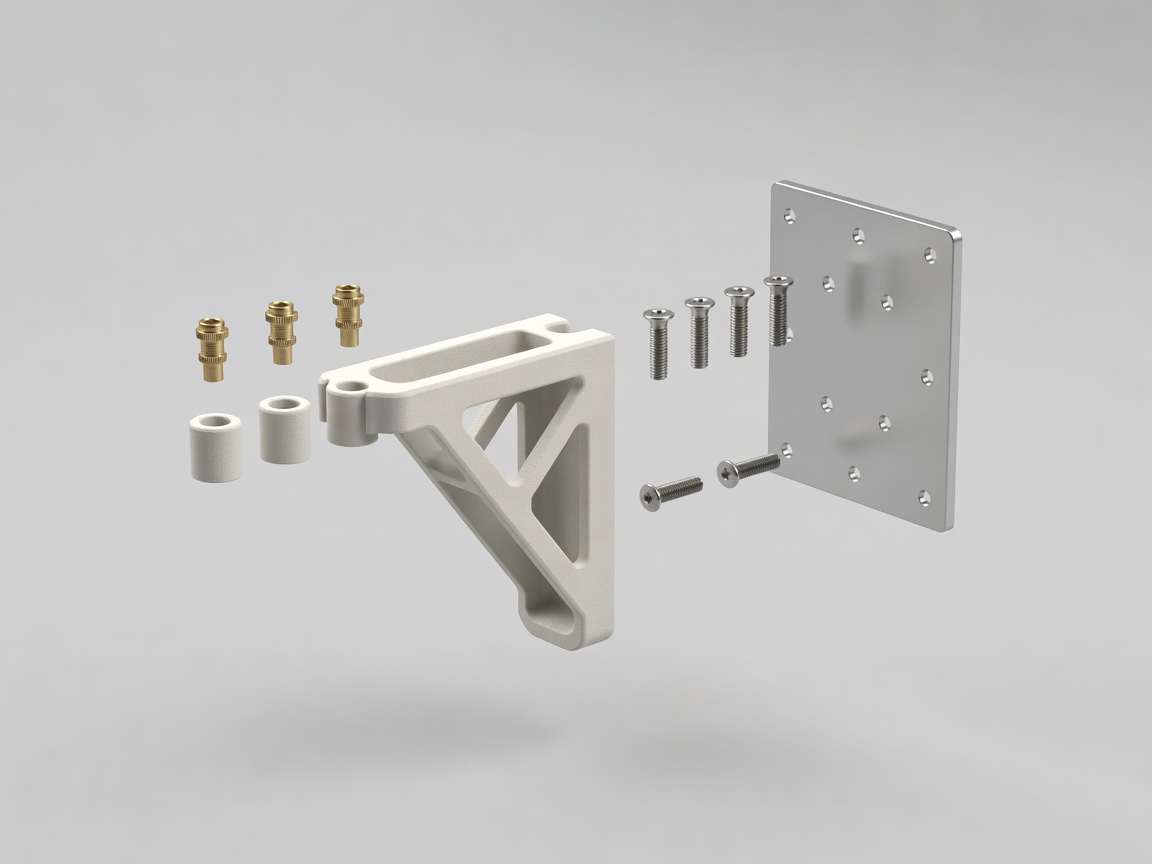
4 partsM4 heat-set insertsInsertion axis Z
“If you cannot explain the load path with a pencil sketch, the CAD model will not explain it for you.”Bench rule, rev C
Pre-Print Model Checklist
- Every mating dimension is a named parameter, not a typed number.
- Load-bearing walls are clean multiples of line width, with at least three perimeters.
- The main load runs along layers, not across them, in the intended print orientation.
- Bed-facing edges are chamfered; overhangs stay near or below 45°.
- Clearances come from your own coupon in the same material.
- An exploded view confirms insertion paths and tool access.
For the engineering behind load paths and stress concentrations, Shigley's Mechanical Engineering Design remains a dependable reference; for print-specific geometry, test your own printer and trust the results over any general rule — including ours. Next, choose a material that suits the duty in Material Before Colour.